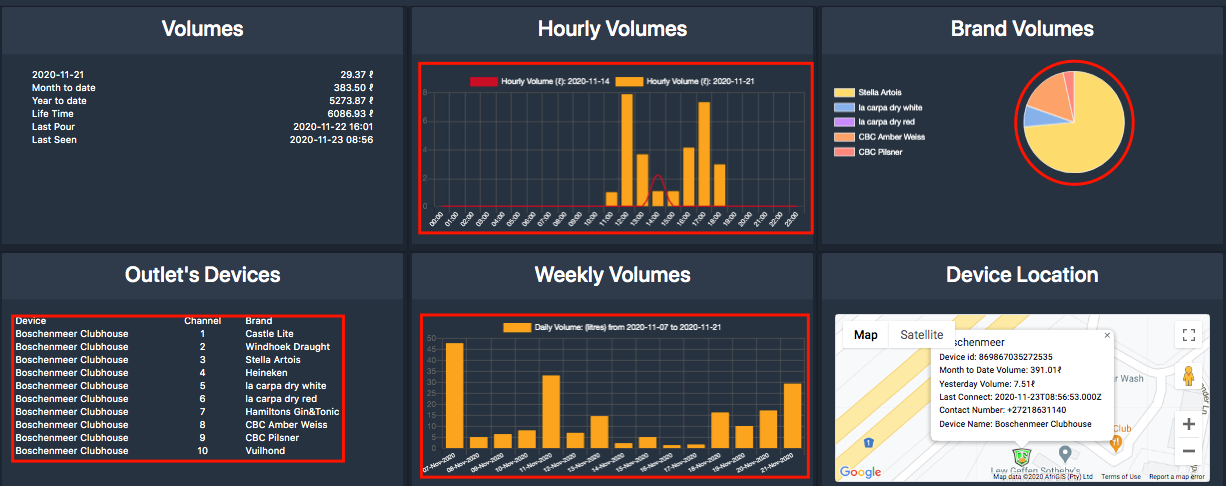
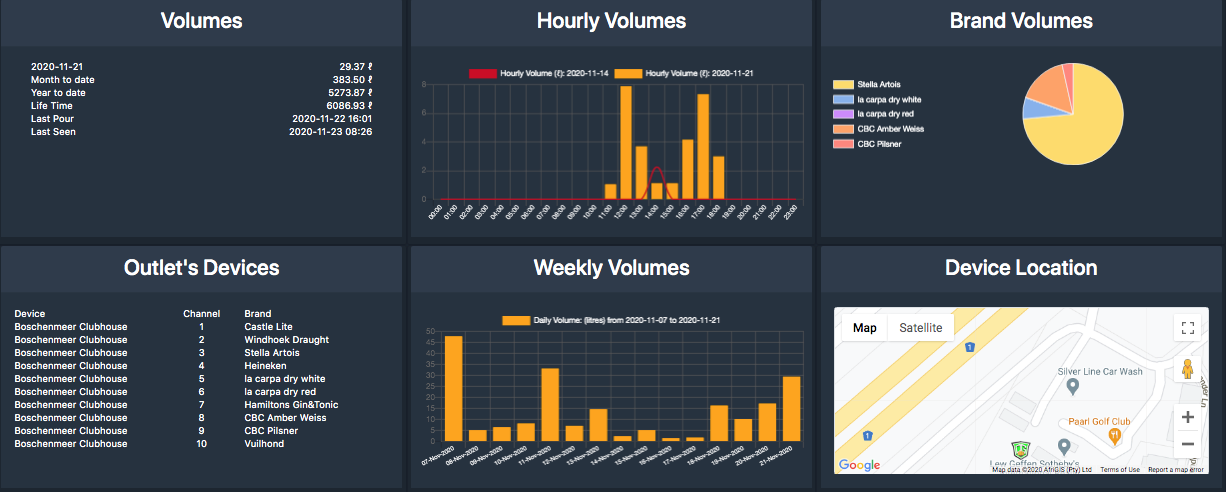
The outlet summary is a quick view dashboard allowing the user to get a quick clickable view on all data associated with and outlet.
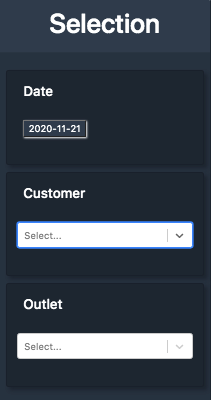
OUTLET AND DATE SELECTION
Select the dropdown menu from the "hamburger" icon in the top right of the report
the select the date for the report, the customer and outlet. Clicking outside of this box will activate the report. You can also select yesterdays report or todays report in the top right.
VOLUMES
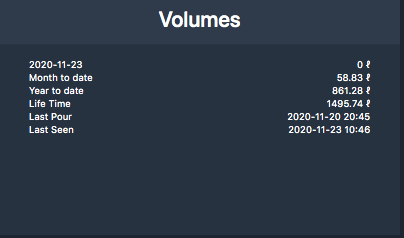
This window gives the user an indication of volume for
- the selected report day
- month to date
- year to date
- life time of the outlet
- last pour at the outlet
- last time the device was seen
HOURLY VOLUMES
This graph shows the hourly volumes poured for the outlet (in orange). you can hover over each bar for further info. The red graph indicates the pour volumes for the same period the for the same day week before.
BRAND VOLUMES
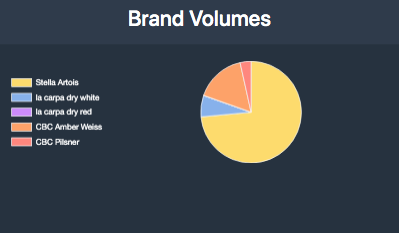
This pie chart shows the breakdown of volumes for each brand poured that day. Clicking each segment on the pie will bring up the POS Data report for that brand.
OUTLET'S DEVICES
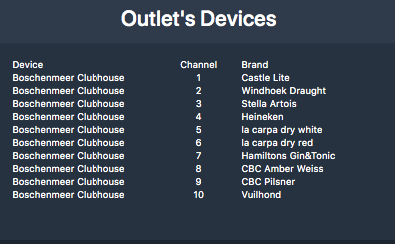
This is a list of the devices or taps associated with this outlet. Clicking the individual devices will update their location on the device location window
WEEKLY VOLUMES
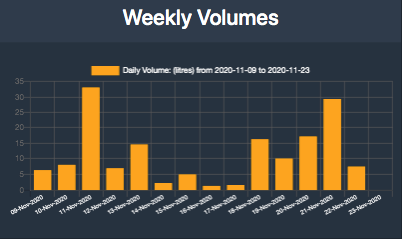
The weekly volumes window shows you the volumes for the outlet for the previous 15 days. click on any bar to move the report to that day
DEVICE LOCATION
Indicates device location on the map
CLICKABLE REGIONS
the areas highlighted in red below are clickable